
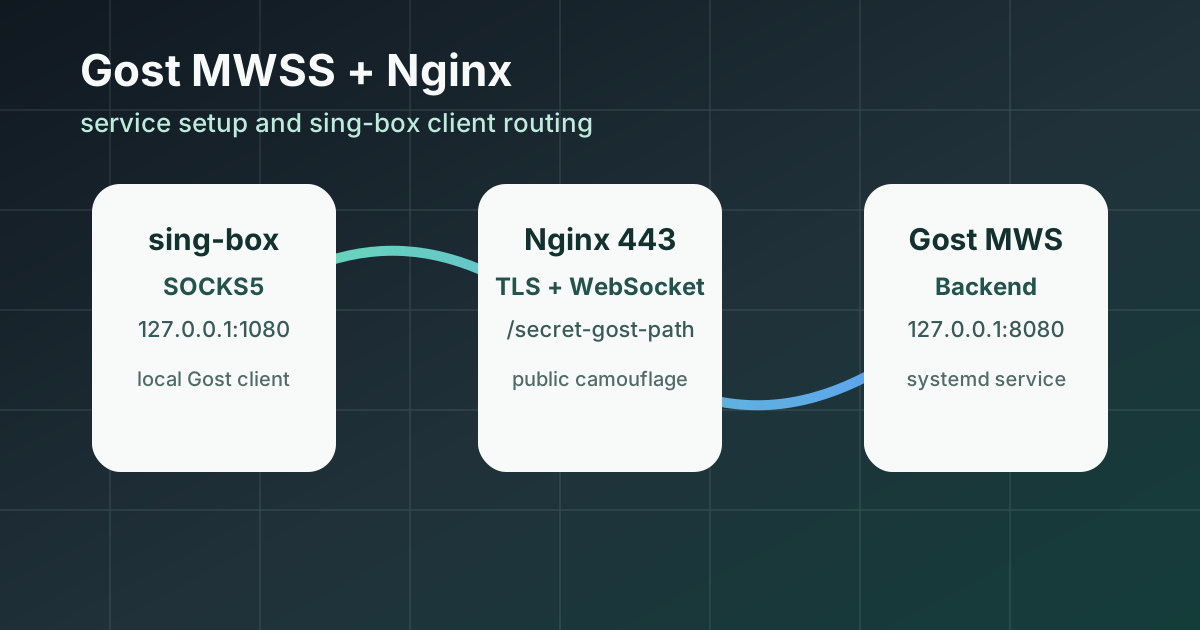
这套方案的核心思路很简单:公网只暴露 Nginx 的 443 端口,Nginx 负责 TLS 和普通网页伪装;真正的 Gost 服务只监听本机 127.0.0.1:18080,并且只接收指定 WebSocket 路径。客户端先用 Gost 连上服务端,把它转成一个本地 SOCKS5 代理,再交给 sing-box 做透明代理和分流。
架构说明
访问链路如下:
sing-box -> 127.0.0.1:1080 -> 本地 Gost 客户端
        -> mwss://proxy.example.com:443/secret-gost-path
        -> Nginx 443 -> 127.0.0.1:18080 -> 服务端 Gost MWS
本文使用下面这些占位值,部署时请替换成自己的信息:
| 项目 | 示例值 |
|---|---|
| 域名 | proxy.example.com |
| 服务器公网 IP | 203.0.113.10 |
| WebSocket 路径 | /secret-gost-path |
| Gost 用户名 | GOST_USER |
| Gost 密码 | GOST_PASS |
| 服务端后端端口 | 127.0.0.1:18080 |
| 客户端本地 SOCKS | 127.0.0.1:1080 |
本文示例可以按下面这样替换:
| 项目 | 文档示例值 |
|---|---|
| 域名 | proxy.example.com |
| 服务器公网 IP | 203.0.113.10 |
| WebSocket 路径 | /secret-gost-path |
| 服务端入口 | 443 |
| Gost 后端端口 | 18080 |
| 客户端本地 SOCKS | 127.0.0.1:1080 |
支持系统
这篇 Linux 版主要面向 Debian、Ubuntu 以及它们的衍生发行版,命令默认使用 apt、systemctl、ufw 和 Debian 系 Nginx 路径。
Gost v3 官方 release 同时提供多平台二进制包,常见可用平台包括:
- Linux:
amd64、arm64等架构。 - FreeBSD:
amd64、arm64等架构。 - OpenBSD、NetBSD、Darwin、Windows 等平台也有对应包。
不同系统的核心差异不在 Gost 配置,而在服务管理、Nginx 路径、防火墙和内核参数:Linux 通常用 systemd 和 /etc/sysctl.d/,FreeBSD 15 则应改用 rc.d、/usr/local/etc/nginx/、/etc/sysctl.conf 和 /boot/loader.conf。
准备域名、DNS 和证书
这一步从零开始写,照着做完后,后面的 Nginx 和 Gost 配置就能直接接上。本文统一使用公版示例域名 proxy.example.com 和公版示例 IP 203.0.113.10,实际部署时替换成你自己的域名和服务器公网 IP。
1. 注册域名并规划子域名
先在任意域名注册商购买一个域名,例如:
example.com不要直接把根域名拿来做节点入口,建议单独建一个普通业务感更强的子域名,例如:
proxy.example.com如果希望伪装得更像网盘、办公或文件服务,也可以使用类似下面的命名:
cloud.example.com
files.example.com
drive.example.com
文章后续仍以 proxy.example.com 为例,保持配置一致。
2. 添加 DNS 解析
进入域名 DNS 管理后台,添加一条 A 记录:
| 类型 | 主机记录 | 记录值 | 说明 |
|---|---|---|---|
A | proxy | 203.0.113.10 | 指向服务器公网 IPv4 |
如果你的服务器有 IPv6,也可以额外添加 AAAA 记录;没有 IPv6 就不要添加,避免客户端优先走 IPv6 导致连接失败。
DNS 保存后,在本机或服务器上检查解析:
dig +short proxy.example.com期望输出:
203.0.113.10如果没有 dig,可以用:
getent hosts proxy.example.comDNS 生效通常需要几分钟到几十分钟。签证书之前,必须确认域名已经解析到当前服务器。
安装依赖和 Gost v3
以下命令以 Debian/Ubuntu 为例:
apt update
apt install -y curl ca-certificates nginx certbot dnsutils
安装 Gost v3:
bash <(curl -fsSL https://github.com/go-gost/gost/raw/master/install.sh) --install
gost -V
这条是 Gost v3 官方项目 go-gost/gost 的安装脚本,默认安装最新稳定版本。安装后一定要用 gost -V 看一下版本号,确认输出是 v3.x。
服务器防火墙至少放行 443。如果还需要自动签证书,80 也要放行:
ufw allow 22/tcp
ufw allow 80/tcp
ufw allow 443/tcp
ufw status
如果服务器前面还有云厂商安全组,也要同步放行 TCP 443。
创建伪装站点目录
给 Nginx 准备一个独立站点目录。目录名直接使用域名,后续维护最清楚:
mkdir -p /var/www/proxy.example.com写一个英文网盘登录页作为根路径伪装页面:
nano /var/www/proxy.example.com/index.html内容可以先用下面这个轻量版本,后续想美化再改:
<!doctype html>
<html lang="en">
<head>
  <meta charset="utf-8">
  <meta name="viewport" content="width=device-width, initial-scale=1">
  <meta name="robots" content="noindex,nofollow">
  <title>Cloud Drive</title>
  <style>
    body {
      margin: 0;
      min-height: 100vh;
      font-family: system-ui, -apple-system, BlinkMacSystemFont, "Segoe UI", sans-serif;
      background: #f6f8fb;
      color: #172033;
      display: grid;
      place-items: center;
      padding: 24px;
    }
    main {
      width: min(420px, 100%);
      background: #fff;
      border: 1px solid #dce3ec;
      border-radius: 6px;
      box-shadow: 0 24px 70px rgba(23, 32, 51, .12);
      padding: 34px;
    }
    h1 { margin: 0 0 8px; font-size: 28px; letter-spacing: 0; }
    p { margin: 0 0 28px; color: #637083; line-height: 1.6; }
    label { display: grid; gap: 8px; margin-bottom: 16px; font-weight: 650; }
    input {
      height: 46px;
      border: 1px solid #dce3ec;
      border-radius: 6px;
      padding: 0 12px;
      font: inherit;
    }
    button {
      width: 100%;
      height: 48px;
      border: 0;
      border-radius: 6px;
      background: #2368c4;
      color: #fff;
      font: inherit;
      font-weight: 750;
    }
    .note { margin-top: 22px; font-size: 13px; color: #7d8898; }
  </style>
</head>
<body>
  <main>
    <h1>Cloud Drive</h1>
    <p>Secure file access for your workspace.</p>
    <form action="/" method="post">
      <label>Email address <input type="email" name="email" autocomplete="email"></label>
      <label>Password <input type="password" name="password" autocomplete="current-password"></label>
      <button type="submit">Sign in</button>
    </form>
    <div class="note">Need access? Contact your workspace administrator.</div>
  </main>
</body>
</html>
先配置 HTTP 站点用于签证书
第一次签 Let’s Encrypt 证书前,先让 Nginx 用 80 端口正常提供这个站点:
nano /etc/nginx/conf.d/gost-mwss.conf先写入临时 HTTP 配置:
server {
    listen 80;
    listen [::]:80;
    server_name proxy.example.com;

    root /var/www/proxy.example.com;
    index index.html;

    location / {
        try_files $uri $uri/ /index.html;
    }
}
检查并启动 Nginx:
nginx -t
systemctl enable --now nginx
systemctl reload nginx
浏览器访问下面地址,应该能看到英文登录页:
http://proxy.example.com/签发 Let’s Encrypt 证书
确认 DNS 已经生效、80 端口可以访问后,用 webroot 模式签证书:
certbot certonly --webroot \
  -w /var/www/proxy.example.com \
  -d proxy.example.com \
  --agree-tos \
  --register-unsafely-without-email \
  --non-interactive
签发成功后,证书路径通常是:
/etc/letsencrypt/live/proxy.example.com/fullchain.pem
/etc/letsencrypt/live/proxy.example.com/privkey.pem
检查自动续期:
certbot renew --dry-run如果想在证书续期后自动 reload Nginx,可以加一个 deploy hook:
mkdir -p /etc/letsencrypt/renewal-hooks/deploy

cat <<'EOF' > /etc/letsencrypt/renewal-hooks/deploy/reload-nginx.sh
#!/bin/sh
systemctl reload nginx
EOF

chmod +x /etc/letsencrypt/renewal-hooks/deploy/reload-nginx.sh
如果你的证书路径不同,后面的 Nginx HTTPS 配置同步改掉即可。
系统和 Nginx 优化
MWSS 走的是 TCP + TLS + WebSocket,多路复用虽然能减少连接握手,但跨境链路想跑得起来,系统 TCP 缓冲区、BBR、文件描述符和 Nginx 并发上限都要一起调。下面这部分建议服务端执行。
内核网络参数
写入独立的 sysctl 配置:
cat <<'EOF' > /etc/sysctl.d/99-gost-mwss-optimize.conf
# 增加系统最大文件描述符
fs.file-max = 1048576

# 开启 TIME-WAIT 快速复用,防止高并发下端口耗尽
net.ipv4.tcp_tw_reuse = 1

# 扩大本地可用端口范围,避开低端口
net.ipv4.ip_local_port_range = 10000 65535

# 启用 BBR 拥塞控制算法
net.core.default_qdisc = fq
net.ipv4.tcp_congestion_control = bbr

# 开启 SYN Cookies 防御
net.ipv4.tcp_syncookies = 1

# 增加 TCP 半连接队列容量
net.ipv4.tcp_max_syn_backlog = 8192

# 提高监听队列和网卡 backlog,降低高并发突发丢连接概率
net.core.somaxconn = 65535
net.core.netdev_max_backlog = 16384

# 放宽 TIME-WAIT 上限并缩短 FIN 等待时间
net.ipv4.tcp_max_tw_buckets = 262144
net.ipv4.tcp_fin_timeout = 30

# 提升最大连接跟踪数,防止高并发连接溢出导致断流
net.netfilter.nf_conntrack_max = 1048576

# 针对跨国高延迟链路放大 TCP 接收/发送窗口缓冲
net.core.rmem_max = 16777216
net.core.wmem_max = 16777216
net.ipv4.tcp_rmem = 4096 87380 16777216
net.ipv4.tcp_wmem = 4096 16384 16777216

# 开启 TCP Fast Open,减少握手延迟
net.ipv4.tcp_fastopen = 3

# 遇到路径 MTU 黑洞时自动探测,减少部分网络环境下的卡顿
net.ipv4.tcp_mtu_probing = 1
EOF

sysctl -p /etc/sysctl.d/99-gost-mwss-optimize.conf
验证 BBR:
sysctl net.ipv4.tcp_congestion_control
lsmod | grep bbr
如果 lsmod | grep bbr 没输出,但 sysctl net.ipv4.tcp_congestion_control 已经显示 bbr,多数新内核也可以正常使用。
Nginx 全局并发优化
备份默认配置:
cp /etc/nginx/nginx.conf /etc/nginx/nginx.conf.bak
nano /etc/nginx/nginx.conf
可以参考下面的全局配置。重点是 worker_rlimit_nofile、worker_connections、multi_accept 和 tcp_nodelay:
user www-data;
worker_processes auto;
worker_cpu_affinity auto;
worker_rlimit_nofile 1048576;

pid /run/nginx.pid;
error_log /var/log/nginx/error.log;
include /etc/nginx/modules-enabled/*.conf;

events {
    worker_connections 65535;
    multi_accept on;
}

http {
    sendfile on;
    tcp_nopush on;
    tcp_nodelay on;
    types_hash_max_size 2048;
    server_tokens off;

    include /etc/nginx/mime.types;
    default_type application/octet-stream;

    ssl_protocols TLSv1.2 TLSv1.3;
    ssl_prefer_server_ciphers off;

    access_log /var/log/nginx/access.log;

    gzip on;

    include /etc/nginx/conf.d/*.conf;
    include /etc/nginx/sites-enabled/*;
}
应用配置:
nginx -t
systemctl restart nginx
如果你的服务器已经有复杂的 Nginx 配置,不要盲目整文件覆盖,只把上面这些关键参数合并进去即可。
还要给 Nginx 的 systemd 服务补文件描述符限制:
mkdir -p /etc/systemd/system/nginx.service.d

cat <<'EOF' > /etc/systemd/system/nginx.service.d/override.conf
[Service]
LimitNOFILE=1048576
EOF

systemctl daemon-reload
nginx -t
systemctl restart nginx
如果服务器原来已经有其它服务占用 443,需要先迁移或停用那个服务。生产环境里建议让 Nginx 独占 443:
ss -lntup | grep ':443'配置 Nginx
新建站点配置:
nano /etc/nginx/conf.d/gost-mwss.conf写入:
server {
    listen 80;
    server_name proxy.example.com;
    return 301 https://$host$request_uri;
}

server {
    listen 443 ssl;
    http2 on;
    server_name proxy.example.com;

    ssl_certificate /etc/letsencrypt/live/proxy.example.com/fullchain.pem;
    ssl_certificate_key /etc/letsencrypt/live/proxy.example.com/privkey.pem;
    ssl_protocols TLSv1.2 TLSv1.3;
    ssl_ciphers HIGH:!aNULL:!MD5;
    ssl_session_cache shared:SSL:10m;
    ssl_session_timeout 1h;

    root /var/www/proxy.example.com;
    index index.html;

    location / {
        try_files $uri $uri/ /index.html;
    }

    location /secret-gost-path {
        access_log off;
        proxy_pass http://127.0.0.1:18080;
        proxy_http_version 1.1;
        proxy_set_header Upgrade $http_upgrade;
        proxy_set_header Connection "upgrade";
        proxy_set_header Host $host;
        proxy_set_header X-Real-IP $remote_addr;
        proxy_set_header X-Forwarded-For $proxy_add_x_forwarded_for;
        proxy_set_header X-Forwarded-Proto $scheme;
        proxy_buffering off;
        proxy_socket_keepalive on;
        proxy_read_timeout 300s;
        proxy_send_timeout 300s;
    }
}
检查并启动 Nginx:
nginx -t
systemctl enable --now nginx
systemctl reload nginx
这里 / 会返回正常网页,只有 /secret-gost-path 会转发到 Gost 后端。
配置 Gost 服务端
创建 systemd 服务:
nano /etc/systemd/system/gost-mwss.service写入:
[Unit]
Description=Gost MWS backend server
After=network-online.target nginx.service
Wants=network-online.target

[Service]
Type=simple
ExecStart=/usr/local/bin/gost -L "mws://GOST_USER:GOST_PASS@:18080?path=/secret-gost-path"
Restart=always
RestartSec=3
LimitNOFILE=1048576

[Install]
WantedBy=multi-user.target
启动服务:
systemctl daemon-reload
systemctl enable --now gost-mwss
systemctl status gost-mwss
确认 Gost 只监听本机端口:
ss -lntup | grep ':18080'正常情况下应该看到 *:18080、127.0.0.1:18080 或本机监听记录。不要把 Gost 后端直接暴露到公网,公网入口交给 Nginx 的 443。
本地 Gost 客户端
客户端机器也安装 Gost。前台测试命令如下:
gost -L socks5://127.0.0.1:1080 -F "mwss://GOST_USER:GOST_PASS@proxy.example.com:443?path=/secret-gost-path"测试本地 SOCKS5 是否可用:
curl --socks5-hostname 127.0.0.1:1080 https://ifconfig.me如果要把本地 SOCKS5 给同一局域网其他设备使用,可以把监听地址改成 0.0.0.0:
gost -L socks5://0.0.0.0:1080 -F "mwss://GOST_USER:GOST_PASS@proxy.example.com:443?path=/secret-gost-path"这样会把代理端口暴露到局域网,请务必用防火墙限制来源 IP。
如果客户端也是 Linux,可以做成 systemd 服务:
nano /etc/systemd/system/gost-mwss-client.service写入:
[Unit]
Description=Gost MWSS local SOCKS client
After=network-online.target
Wants=network-online.target

[Service]
Type=simple
ExecStart=/usr/local/bin/gost -L "socks5://127.0.0.1:1080" -F "mwss://GOST_USER:GOST_PASS@proxy.example.com:443?path=/secret-gost-path"
Restart=always
RestartSec=3
LimitNOFILE=1048576

[Install]
WantedBy=multi-user.target
启动:
systemctl daemon-reload
systemctl enable --now gost-mwss-client
systemctl status gost-mwss-client
sing-box 客户端配合
sing-box 不直接连接 MWSS,而是把流量交给本机 Gost 提供的 SOCKS5。这样配置更清晰,也方便单独排查 Gost 链路。下面按生产环境里常见的分片配置写法示例,不需要重写入站,也不需要把现有配置改成 TUN。
1. 修改 04_outbounds.json
先在主 selector 里把新节点 tag 加进去。重点看 gost-mwss 这一行,它和其它节点并列:
{
  "outbounds": [
    {
      "tag": "Proxy",
      "type": "selector",
      "outbounds": [
        "auto",
        "node-a",
        "node-b",
        "gost-mwss"
      ],
      "interrupt_exist_connections": true,
      "default": "auto"
    },
    {
      "tag": "auto",
      "type": "urltest",
      "outbounds": [
        "node-a",
        "node-b",
        "gost-mwss"
      ],
      "interval": "2m0s"
    }
  ]
}
如果你的配置里还有 YouTube、Google、Telegram、GitHub 等分流 selector,也可以把 gost-mwss 加到这些 selector 的 outbounds 数组里。这样在面板里就能手动选择这个节点。
然后在 outbounds 数组靠后的位置加入真正的 SOCKS 出站对象。下面保留了前后文,注意前一个对象后面要有逗号:
{
  "outbounds": [
    {
      "type": "direct",
      "tag": "direct"
    },
    {
      "type": "socks",
      "tag": "gost-mwss",
      "server": "127.0.0.1",
      "server_port": 1080,
      "version": "5",
      "udp_over_tcp": false
    }
  ]
}
2. 修改 05_route.json
节点域名和节点 IP 建议放在 rules 最前面直连,避免代理回环。下面是带上下文的插入位置:
{
  "route": {
    "final": "Proxy",
    "rules": [
      {
        "domain": [
          "proxy.example.com"
        ],
        "ip_cidr": [
          "203.0.113.10/32"
        ],
        "outbound": "direct"
      },
      {
        "ip_is_private": true,
        "outbound": "direct"
      },
      {
        "rule_set": "geosite-geolocation-!cn",
        "outbound": "Proxy"
      }
    ]
  }
}
3. fake-ip DNS 环境必须固定 Gost 节点解析
如果客户端使用 sing-box/mosdns 的 fake-ip DNS,这一步不要省。sing-box 配置里的 route.rules 只管进入 sing-box 的流量,但本机 Gost 客户端是一个独立进程,它启动后会走系统 DNS 去解析 proxy.example.com。
这里的“客户端”指运行 gost -L socks5://127.0.0.1:1080 -F mwss://... 的那台机器,通常也是运行 sing-box/mosdns 的旁路由或代理网关。不要写到 Gost 服务端的 /etc/hosts 里;服务端自己解析不参与这条上游连接,写了也解决不了本地 Gost 客户端被 fake-ip 坑住的问题。
如果系统 DNS 正好指向本机 mosdns 或 sing-box,Gost 可能把节点域名解析成 28.0.0.0/8 这类 fake-ip。结果就是 Gost 去连接一个虚拟 IP,而不是真实服务器 IP。表面现象很像节点被墙:
- sing-box 面板里 Gost 节点测速失败,或者一直转圈。
curl --socks5-hostname 127.0.0.1:1080 https://www.gstatic.com/generate_204卡住直到超时。- Gost 日志里可以看到上游目标是 fake-ip,例如
remote="28.0.14.153:443"。 - 服务端 Nginx/Gost 可能完全看不到请求,或者只看到异常断开的 WebSocket。
先在运行 Gost 客户端的机器上检查解析结果:
getent hosts proxy.example.com如果返回的是 fake-ip,先不要怀疑服务器和协议,直接给 Gost 客户端机器固定 hosts:
echo "203.0.113.10 proxy.example.com" >> /etc/hosts如果系统由 cloud-init 管理 /etc/hosts,重启后可能覆盖手动修改。Debian/Ubuntu 云主机常见模板在这里,也一起写入:
echo "203.0.113.10 proxy.example.com" >> /etc/cloud/templates/hosts.debian.tmpl然后重启 Gost 客户端:
systemctl restart gost-mwss-client
getent hosts proxy.example.com
curl --socks5-hostname 127.0.0.1:1080 -m 15 https://www.gstatic.com/generate_204正常时,getent hosts 应返回真实服务器 IP;curl 不应再卡到超时。如果要进一步确认,可以看 Gost 日志,上游 dst 或 remote 应该是真实服务器 IP,而不是 28.0.0.0/8 这样的 fake-ip。
4. 单文件配置的写法
如果你的 sing-box 是单文件配置,也是在同样的位置添加:outbounds 数组里加 SOCKS 出站,route.rules 开头加节点直连规则。
{
  "outbounds": [
    {
      "type": "socks",
      "tag": "gost-mwss",
      "server": "127.0.0.1",
      "server_port": 1080,
      "version": "5",
      "udp_over_tcp": false
    },
    {
      "type": "direct",
      "tag": "direct"
    }
  ],
  "route": {
    "rules": [
      {
        "domain": [
          "proxy.example.com"
        ],
        "ip_cidr": [
          "203.0.113.10/32"
        ],
        "outbound": "direct"
      }
    ],
    "final": "gost-mwss",
    "auto_detect_interface": true
  }
}
验证与排错
服务端检查:
nginx -t
systemctl status nginx gost-mwss
journalctl -u gost-mwss -f
curl -I https://proxy.example.com/
客户端检查:
systemctl status gost-mwss-client
curl --socks5-hostname 127.0.0.1:1080 https://ifconfig.me
常见问题:
- 浏览器访问根路径返回普通网页是正常的,说明 Nginx 伪装入口工作正常。
- 访问 WebSocket 路径出现
502,通常是 Gost 后端没有启动,或127.0.0.1:18080没监听。 - 客户端连不上时,优先核对域名、证书、用户名、密码和 WebSocket 路径是否完全一致。
- sing-box 配置里必须让节点域名和节点 IP 走
direct,否则容易出现代理回环。 - 证书域名必须和
proxy.example.com一致,不能用 IP 直连 MWSS。
到这里,服务端只暴露 Nginx 443,Gost 后端藏在本机端口,客户端由 Gost 转 SOCKS5,再交给 sing-box 统一分流,整体结构就比较干净了。